APP Usages & Settings
This page covers the Home, Configs, Settings and etc section of the ReaSnow Manager APP. For account management (login, registration, membership), see Account System.
APP Orientation
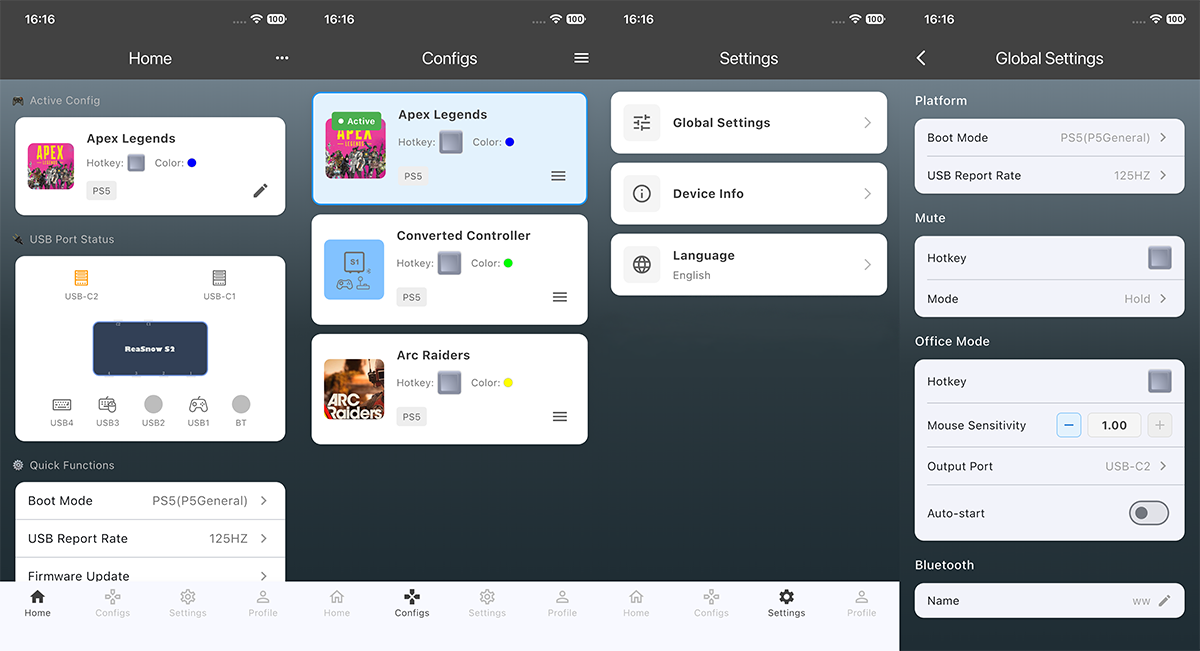
The main interface has 4 tabs at the bottom:
| Tab | Function |
|---|---|
| Home | Real-time dashboard: 6 port statuses, current active config, system state |
| Configs | Config slot manager, official config library, cloud backup |
| Settings | Global settings, device info, language selector |
| Profile | Account management, membership tier, creator center |
Settings Menu
Open Settings from the bottom tab bar to access:
| Item | Description |
|---|---|
| Global Settings | Boot mode, USB report rate, mute mode, office mode, Bluetooth name |
| Device Info | Firmware version, hardware version, BLE protocol version, bootloader version, serial number, MAC address |
| Language | 8 languages: English, 日本語, 中文, Français, Deutsch, Русский, Português-BR, Español-MX |
Global Settings
Boot Mode
Sets which platform S2 emulates on boot. The correct mode must match your console and authentication method.
| Mode | Use For |
|---|---|
| PC (XB360) | PC in XB360 mode |
| PS5 (Remote Play) | PS5 over LAN via Remote Play |
| PS5 (P5MATE) | PS5 with P5MATE adapter |
| PS5 (P5General) | PS5 USB connection |
| PS4 | PS4/PS4 Pro |
| Xbox Series X|S | Xbox Series X|S |
| Xbox One | Xbox One |
| Nintendo Switch | Nintendo Switch 1/2 |
The selector shows all 8 modes as visual radio tiles. Tap a mode, confirm, and S2 automatically restarts into that mode.
USB Report Rate
| Option | Use Case |
|---|---|
| 125 Hz | Stability-oriented, legacy games |
| 250 Hz | Balanced |
| 500 Hz | Standard competitive |
| 1000 Hz | Lowest latency |
Higher report rates reduce input latency. Changing the rate causes S2 to restart automatically.
Mute Mode
Controls how the mute hotkey behaves:
| Mode | Behavior |
|---|---|
| Hold | Mute active while the hotkey is held down |
| Toggle | Press once to mute, press again to unmute |
Office Mode
When enabled, S2 outputs as a standard keyboard and mouse rather than a controller — useful for desktop tasks.
| Setting | Range / Default | Notes |
|---|---|---|
| Enable/Disable | OFF | Toggle |
| Mouse Sensitivity | 0.01–1.00 | Desktop tasks need lower sensitivity than gaming |
| Output Port | C1 / C2 | Which USB-C port to send output |
| Auto Start | ON / OFF | Launch office mode on power-up |
| Activation Hotkey | Configurable | Key combo to enter office mode |
Custom Bluetooth Name
Set a friendly name (up to 15 UTF-8 bytes) for S2’s BLE broadcast. Helps identify your device when multiple S2 units are nearby.
IO Monitor
The IO Monitor is a real-time input viewer — a unique S2 feature not found on competing converters.
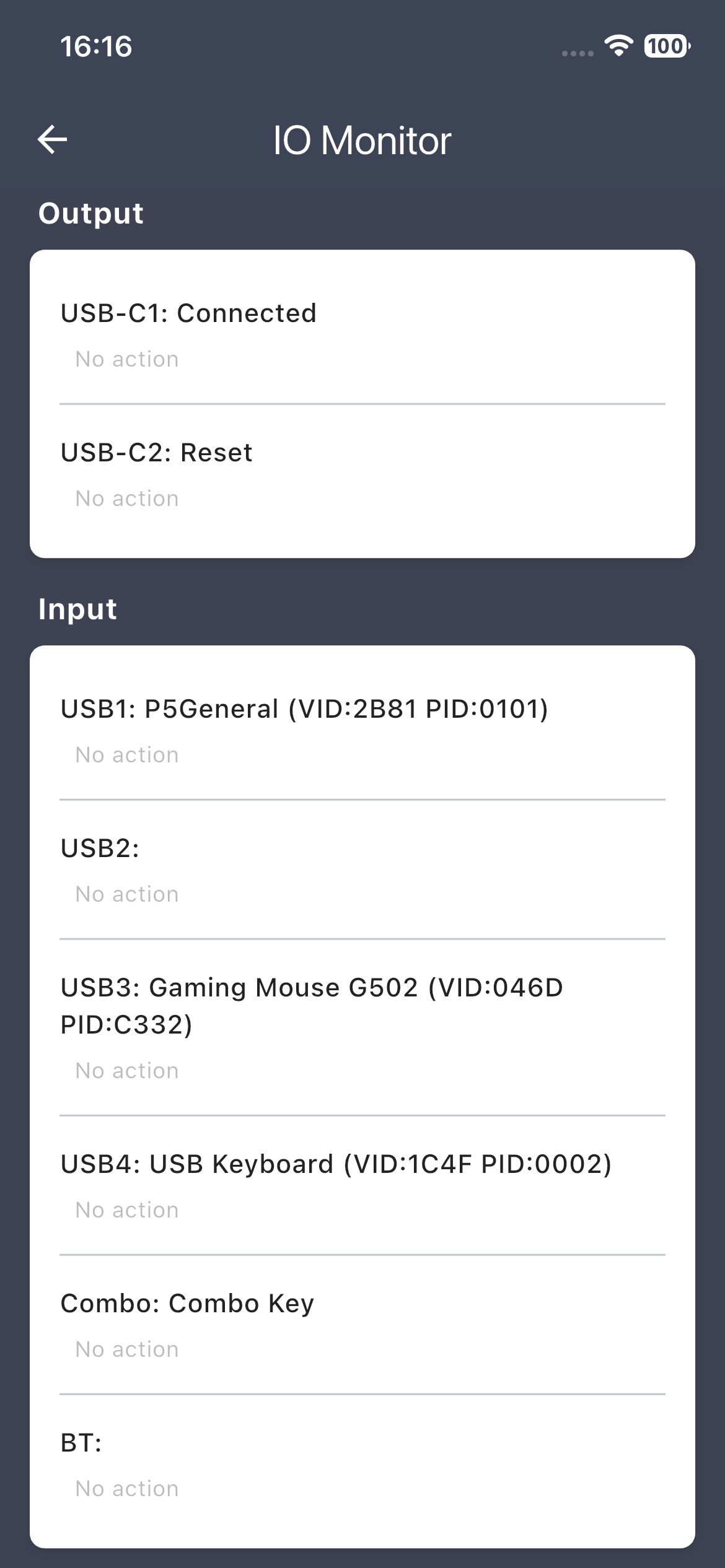
| Section | What It Shows |
|---|---|
| Port Status | USB1–4, Bluetooth — each port’s connected device name and input state |
| Key Presses | Up to 12 simultaneous keys with their mapped labels |
| Analog Values | Real-time X/Y stick values for both thumbsticks |
| System Info Panel | Currently loaded macro, active macro, system state, connected peripheral names |
💡 Tip: The IO Monitor is your best debugging tool. If a button isn’t working in-game, open this page and press it — you will immediately see whether S2 detects the input and what it maps to.
Hotkey Selector
Every action that can be bound to a key (config switching, macro activation, mute, office mode) uses the Hotkey Selector to assign the trigger.
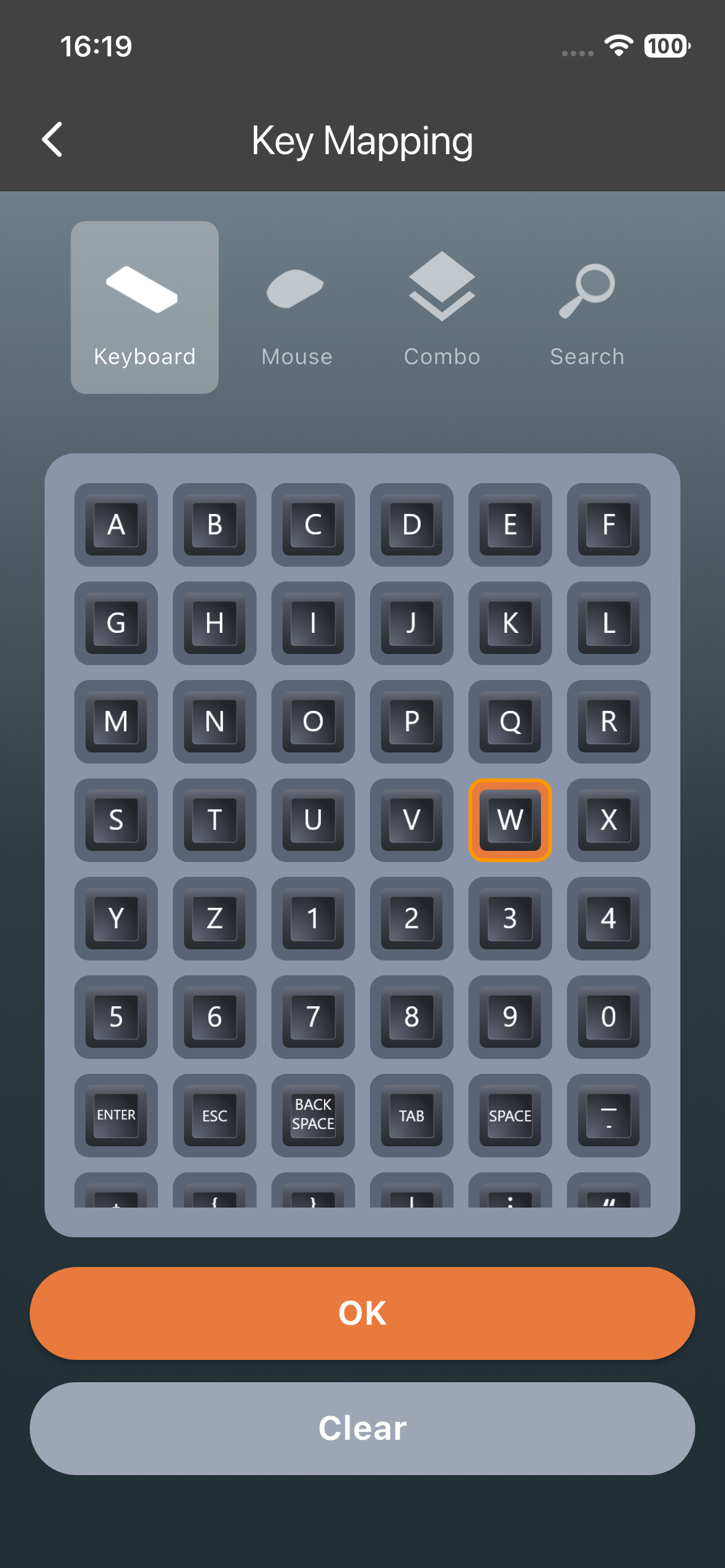
| Input Method | Description |
|---|---|
| Keyboard | Browse a visual grid of all keyboard keys with icons |
| Mouse | Left/Right/Middle/Side/Scroll Wheel/Mouse movements |
| Combo Keys | pre-defined combination keys |
| Search | Press the physical buttons on devices plugged into S2 — APP captures the key code in real time |
⚙️ Advanced — Search: Instead of picking from a grid, you press the actual key you want to use, and S2 learns it instantly. This is the fastest way to set a hotkey, especially for unusual keyboards.