Getting Started
Everything you need to get your ReaSnow S2 up and running — wiring, APP setup, specifications, downloads, firmware updates, and Bluetooth pairing.
Start here if this is your first time using ReaSnow S2.
Ready for more? Head to Tuning & Configuration to dial in your aim, keybindings, and macros.
1 - Getting Started
First-time setup guide for ReaSnow S2, unbox, wire up, connect the APP, load a game config, and start playing in 3 steps.
This guide walks you through setting up your ReaSnow S2 for the first time. After these 3 steps, you will be in a game using your preferred mouse and keyboard.
What’s in the Box
- ReaSnow S2 device × 1
- USB-C cable × 1
- Quick Start leaflet × 1
Know Your Ports
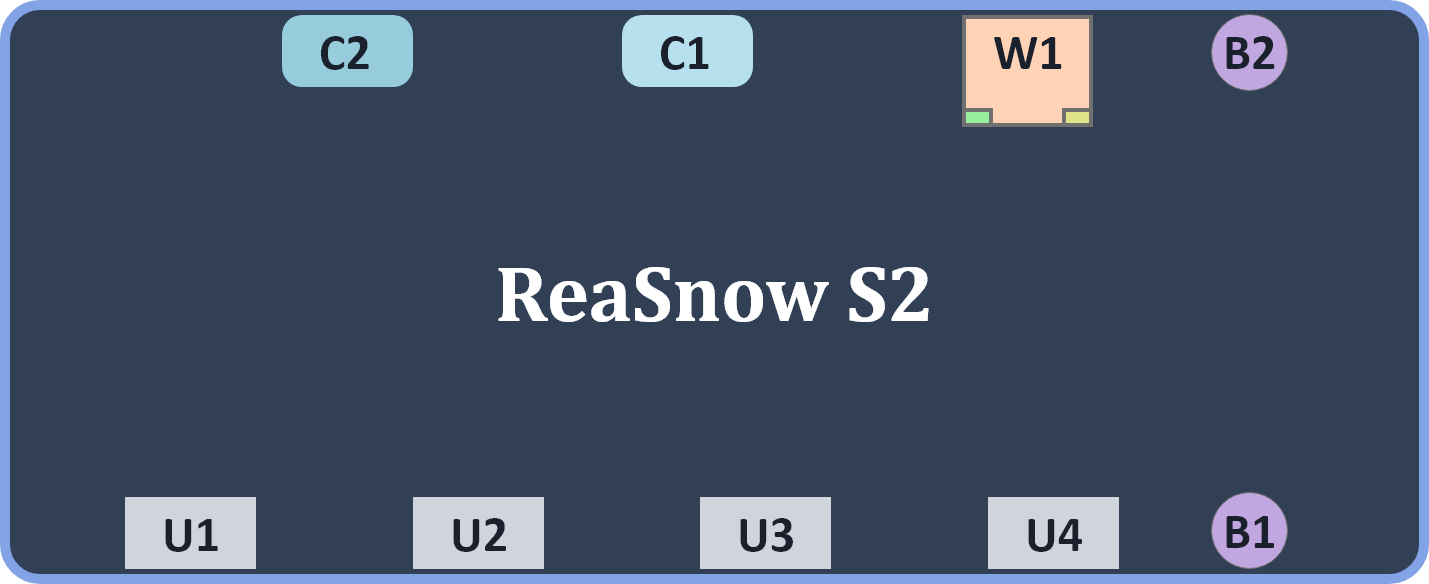
| Pin | Interface Type | Typical Use | Notes |
|---|
| U1 | USB-A | Authentication controller | Official controller for your console |
| U2 | USB-A | mouse,keyboard,controller,etc | input device |
| U3 | USB-A | mouse,keyboard,controller,etc | input device |
| U4 | USB-A | mouse,keyboard,controller,etc | input device |
| C1 | USB-C | Primary output | Main console / PC |
| C2 | USB-C | Secondary output | PC |
| W1 | RJ45 Ethernet | Remote Play dedicated network port | Low-latency wired LAN |
| B1 | Power Button | Power on/off | Long press to toggle |
| B2 | Firmware/Bluetooth Button | Press for BT pairing | Press for BT pairing; hold for firmware upgrade |
ℹ️ Info: S2 is powered over USB-C from the console or PC. No separate power adapter is needed.
Before You Begin
1. Prepare Your Mouse
Set your gaming mouse to the recommended range before connecting to S2:
- DPI: 4000–16000 (5000 dpi recommended)
- Report Rate: 250–1000 Hz (500 Hz recommended)
Use your mouse manufacturer’s software or the onboard DPI button to configure these settings.
| Platform | Action |
|---|
| PS4/PS5 | Settings → Accessories → Controllers → Communication Method → Use USB Cable |
| Switch | Settings → Controllers and Sensors → Pro Controller Wired Communication → ON |
| Xbox | No special settings required |
3. Install the APP
Download ReaSnow Manager on your phone:
- Android: Google Play (search “ReaSnow S2 Manager”), or download the APK from the Download Center
- iOS: App Store (search “ReaSnow S2 Manager”)
💡 Tip: Keep the APP updated to the latest version. The APP and S2 firmware are frequently updated together for compatibility.
Setup Steps
Step 1: Wiring Instructions
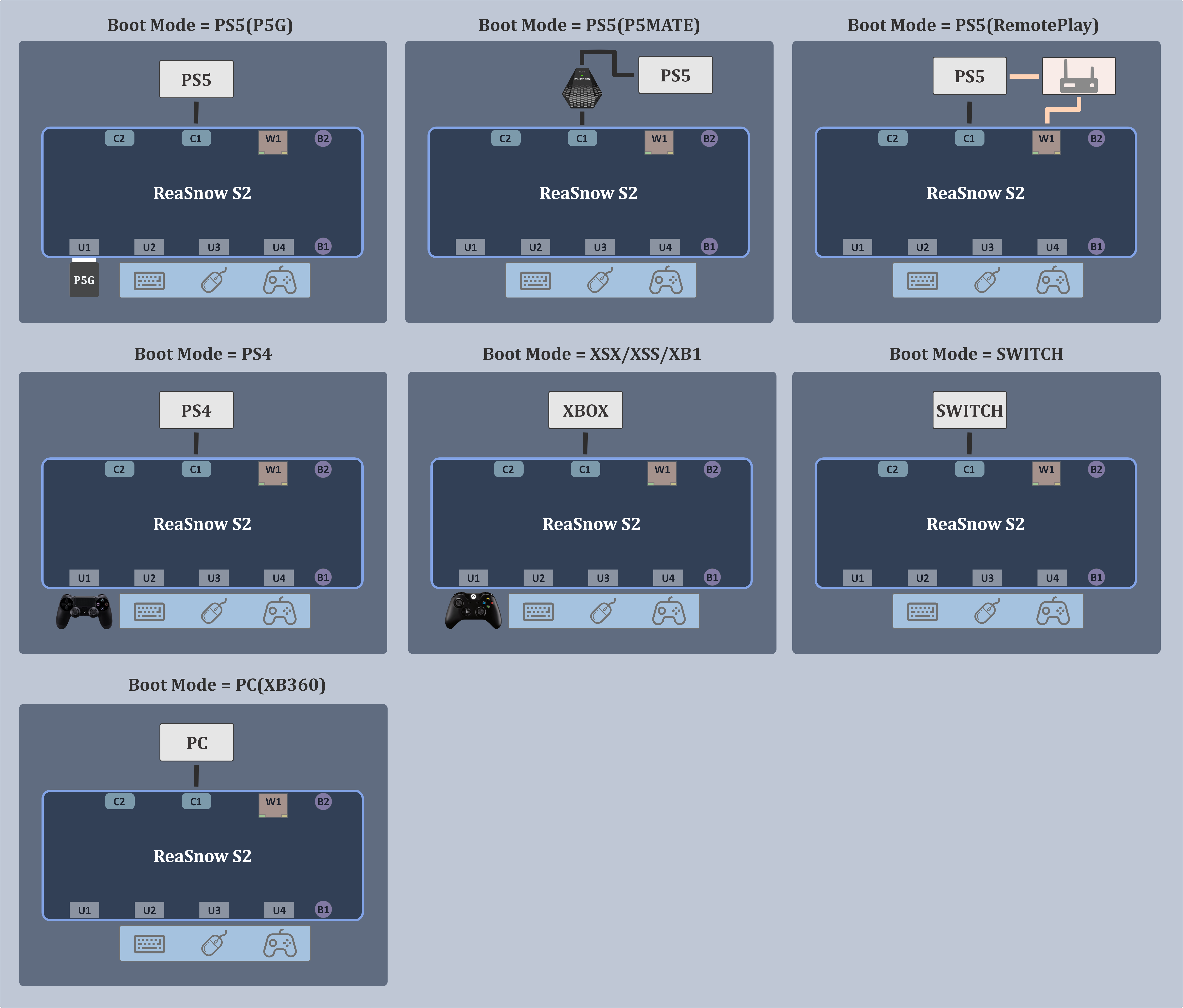
⚠️ Warning: Do not connect through an unpowered USB hub. Plug S2 directly into a console/PC USB port, or use a powered hub. Under-voltage causes authentication failures and disconnects.
Step 2: Connect the APP
- The LED of S2 will show green — it is waiting.
- Turn on Bluetooth and GPS on your phone.
- Open ReaSnow S2 Manager.
ℹ️ Info: Grant Bluetooth and Location permissions when asked, if this is the first connection.
ℹ️ Info: Upgrade to the latest firmware when notified.
ℹ️ Info: Choose the correct Boot Mode for your gaming platform.
ℹ️ Info: S2 stays paired. The next time you power on, the APP auto-reconnects.
Step 3: Add a Game Config & Play
- Switch to the Configs tab.
- Tap Official Configs to browse pre-made game configurations.
- Select a config and add it to your S2.
You are ready. The mouse and keyboard now translate to controller inputs with the selected game config.
- Press the activation hotkey to switch between configs mid-game.
- Use the IO Monitor page any time to verify that all buttons and sticks register correctly.
Firmware Note
Check the firmware version in the APP and upgrade to the latest before your first game session.
Detailed steps → Firmware Update
Keybinding
Familiarize yourself with the default key bindings and customize them to fit your playstyle.
Full guide → Keybinding
Mouse Tuning
Adjust in-game settings and mouse parameters according to your config recommendations.
Tuning guide → Aim Tuning
2 - Specifications
Complete hardware specifications and platform compatibility for ReaSnow S2, the 3rd-generation multi-platform gaming converter.
This page lists every hardware specification, supported platform, and compatibility limitation of ReaSnow S2.
Port Layout
| Pin | Interface Type | Typical Use | Notes |
|---|
| U1 | USB-A | Authentication controller | Official controller for your console |
| U2 | USB-A | mouse,keyboard,controller,etc | input device |
| U3 | USB-A | mouse,keyboard,controller,etc | input device |
| U4 | USB-A | mouse,keyboard,controller,etc | input device |
| C1 | USB-C | Primary output | Main console / PC |
| C2 | USB-C | Secondary output | PC |
| W1 | RJ45 Ethernet | Remote Play dedicated network port | Low-latency wired LAN |
| B1 | Power Button | Power on/off | Long press to toggle |
| B2 | Firmware/Bluetooth Button | Press for BT pairing | Press for BT pairing; hold for firmware upgrade |
Hardware Specifications
| Parameter | Value |
|---|
| Product Name | ReaSnow S2 |
| Generation | 3rd-Gen (S1 = 2nd, CrossHair = 1st) |
| Dimensions (L × W × H) | 120 × 60 × 24 mm |
| Weight | 95 g |
| Color | Black |
| USB-A Ports | 4 (U1–4 — connect peripherals: mouse, keyboard, controller, joystick) |
| USB-C Ports | 2 (C1/C2 — output to console/PC) |
| Ethernet | 1 (W1 — RJ45, dedicated for Remote Play) |
| Bluetooth | BLE (connect to ReaSnow Manager APP on mobile) |
| Button 1 | Firmware upgrade mode / Bluetooth pairing |
| Button 2 | Power switch |
| Config Slots | 16 (stored in built-in Flash) |
| Power | USB-C bus power (no external adapter needed) |
| Firmware Update | BLE OTA via APP |
| Operating Temperature | −10 ~ 50°C |
| Operating Humidity | ≤ 90% |
| Package Contents | S2 device ×1, USB-C cable ×1, Quick Start leaflet ×1 |
| Platform | Supported | Authentication Method | Notes |
|---|
| PS5 | ✅ | P5G (direct) / P5MATE (adapter) / Remote Play (LAN) | Three connection options |
| PS4 | ✅ | DS4 controller on USB1 | — |
| PS3 | ❌ | — | Not supported |
| Xbox Series X|S | ✅ | XSX|XSS controller on USB1 | — |
| Xbox One | ✅ | XB1 controller on USB1 | — |
| Xbox 360 | ❌ | — | Not supported |
| Nintendo Switch 1/2 | ✅ | No auth device required | Enable “Pro Controller Wired Communication” |
| PC (XB360 mode) | ✅ | No auth device required | Plug and play |
PS5 Connection Options
| Feature | P5G (Direct) | P5MATE (Adapter) | Remote Play (LAN) |
|---|
| Latency | Very low | Very low | Low |
| Vibration | — | ✅ | ✅ |
| Gyro | — | — | — |
| Adaptive Triggers | — | — | — |
| Controller Audio | — | — | — |
Unsupported Features
S2 is a keyboard and mouse converter. The following features are not supported and are marked for clarity:
| Feature | Status | Notes |
|---|
| Steering Wheel (Force Feedback) | ❌ | Including Expert Mode, Legacy Mode, clutch, H-shifter, sequential shifter, handbrake |
| Gyroscope (Gyro) | ❌ | — |
| Adaptive Triggers (PS5) | ❌ | — |
| PS5 Controller Audio Output | ❌ | Not available in P5G mode |
| Bluetooth Audio Devices | ❌ | No Bluetooth headphone support |
| USB Audio Devices | ❌ | No audio passthrough |
| Pedals (Racing) | ❌ | Part of steering wheel subsystem |
| PS3 | ❌ | Platform not supported |
| Xbox 360 | ❌ | Platform not supported |
Peripheral Compatibility Summary
| Category | Status | Details |
|---|
| Gaming Mice | ✅ | USB wired and 2.4 GHz wireless (via receiver). Recommended DPI: 4000–16000. Max report rate: 1000 Hz. |
| Gaming Keyboards | ✅ | USB wired. Recommended 6-Key Rollover minimum, NKRO preferred. |
| Official Controllers | ✅ | DS5, DS4, Xbox Series, Xbox One — used for authentication + input |
| Elite Controllers | ✅ | Xbox Elite, DualSense Edge — extra buttons may need additional setup |
| Third-Party Controllers | ✅ | Partial — refer to compatibility list |
| Flight Sticks (Joystick/HOTAS) | ✅ | Including stand-alone throttle |
| Arcade Sticks | ✅ | — |
| Steering Wheels | ❌ | No support |
| Bluetooth Mouse/Keyboard | ❌ | Direct BLE connection to S2 not supported — use USB or 2.4 GHz receiver |
Recommended Mouse Settings
| Setting | Recommendation |
|---|
| DPI | 4000–16000 |
| USB Report Rate | 250–1000 Hz |
| Acceleration | OFF |
⚙️ Advanced: Each Game Config calibrates the Intelligent Mouse Engine for its target game. Set your in-game settings to what the config recommends.
3 - APP Usages & Settings
Complete reference for ReaSnow Manager APP settings — global settings, IO monitor, hotkey selector, etc.
This page covers the Home, Configs, Settings and etc section of the ReaSnow Manager APP. For account management (login, registration, membership), see Account System.
APP Orientation
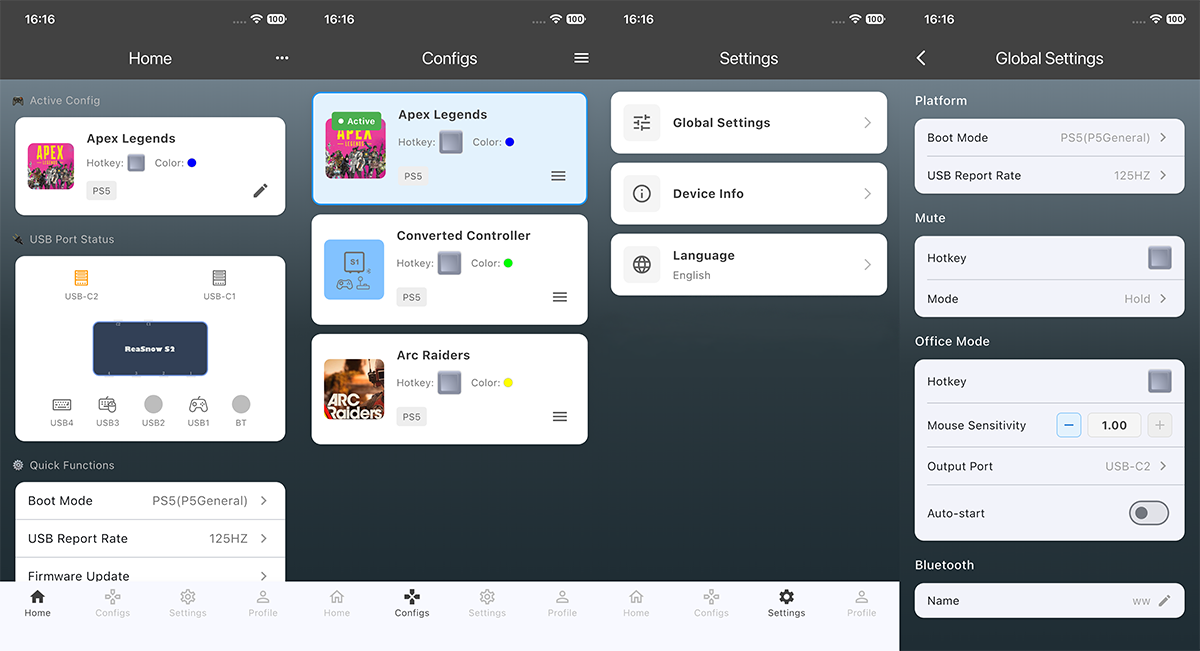
The main interface has 4 tabs at the bottom:
| Tab | Function |
|---|
| Home | Real-time dashboard: 6 port statuses, current active config, system state |
| Configs | Config slot manager, official config library, cloud backup |
| Settings | Global settings, device info, language selector |
| Profile | Account management, membership tier, creator center |
Open Settings from the bottom tab bar to access:
| Item | Description |
|---|
| Global Settings | Boot mode, USB report rate, mute mode, office mode, Bluetooth name |
| Device Info | Firmware version, hardware version, BLE protocol version, bootloader version, serial number, MAC address |
| Language | 8 languages: English, 日本語, 中文, Français, Deutsch, Русский, Português-BR, Español-MX |
Global Settings
Boot Mode
Sets which platform S2 emulates on boot. The correct mode must match your console and authentication method.
| Mode | Use For |
|---|
| PC (XB360) | PC in XB360 mode |
| PS5 (Remote Play) | PS5 over LAN via Remote Play |
| PS5 (P5MATE) | PS5 with P5MATE adapter |
| PS5 (P5General) | PS5 USB connection |
| PS4 | PS4/PS4 Pro |
| Xbox Series X|S | Xbox Series X|S |
| Xbox One | Xbox One |
| Nintendo Switch | Nintendo Switch 1/2 |
The selector shows all 8 modes as visual radio tiles. Tap a mode, confirm, and S2 automatically restarts into that mode.
USB Report Rate
| Option | Use Case |
|---|
| 125 Hz | Stability-oriented, legacy games |
| 250 Hz | Balanced |
| 500 Hz | Standard competitive |
| 1000 Hz | Lowest latency |
Higher report rates reduce input latency. Changing the rate causes S2 to restart automatically.
Mute Mode
Controls how the mute hotkey behaves:
| Mode | Behavior |
|---|
| Hold | Mute active while the hotkey is held down |
| Toggle | Press once to mute, press again to unmute |
Office Mode
When enabled, S2 outputs as a standard keyboard and mouse rather than a controller — useful for desktop tasks.
| Setting | Range / Default | Notes |
|---|
| Enable/Disable | OFF | Toggle |
| Mouse Sensitivity | 0.01–1.00 | Desktop tasks need lower sensitivity than gaming |
| Output Port | C1 / C2 | Which USB-C port to send output |
| Auto Start | ON / OFF | Launch office mode on power-up |
| Activation Hotkey | Configurable | Key combo to enter office mode |
Custom Bluetooth Name
Set a friendly name (up to 15 UTF-8 bytes) for S2’s BLE broadcast. Helps identify your device when multiple S2 units are nearby.
IO Monitor
The IO Monitor is a real-time input viewer — a unique S2 feature not found on competing converters.
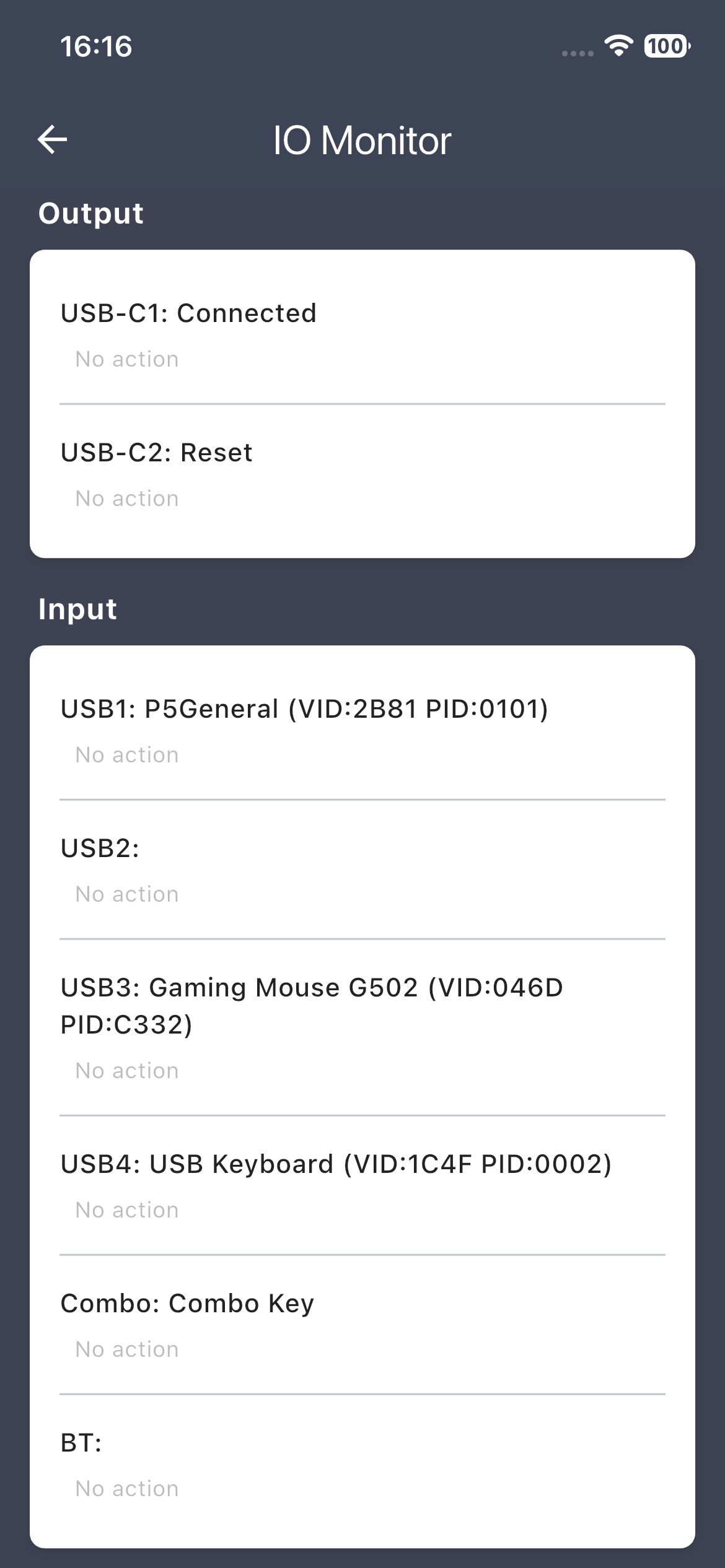
| Section | What It Shows |
|---|
| Port Status | USB1–4, Bluetooth — each port’s connected device name and input state |
| Key Presses | Up to 12 simultaneous keys with their mapped labels |
| Analog Values | Real-time X/Y stick values for both thumbsticks |
| System Info Panel | Currently loaded macro, active macro, system state, connected peripheral names |
💡 Tip: The IO Monitor is your best debugging tool. If a button isn’t working in-game, open this page and press it — you will immediately see whether S2 detects the input and what it maps to.
Hotkey Selector
Every action that can be bound to a key (config switching, macro activation, mute, office mode) uses the Hotkey Selector to assign the trigger.
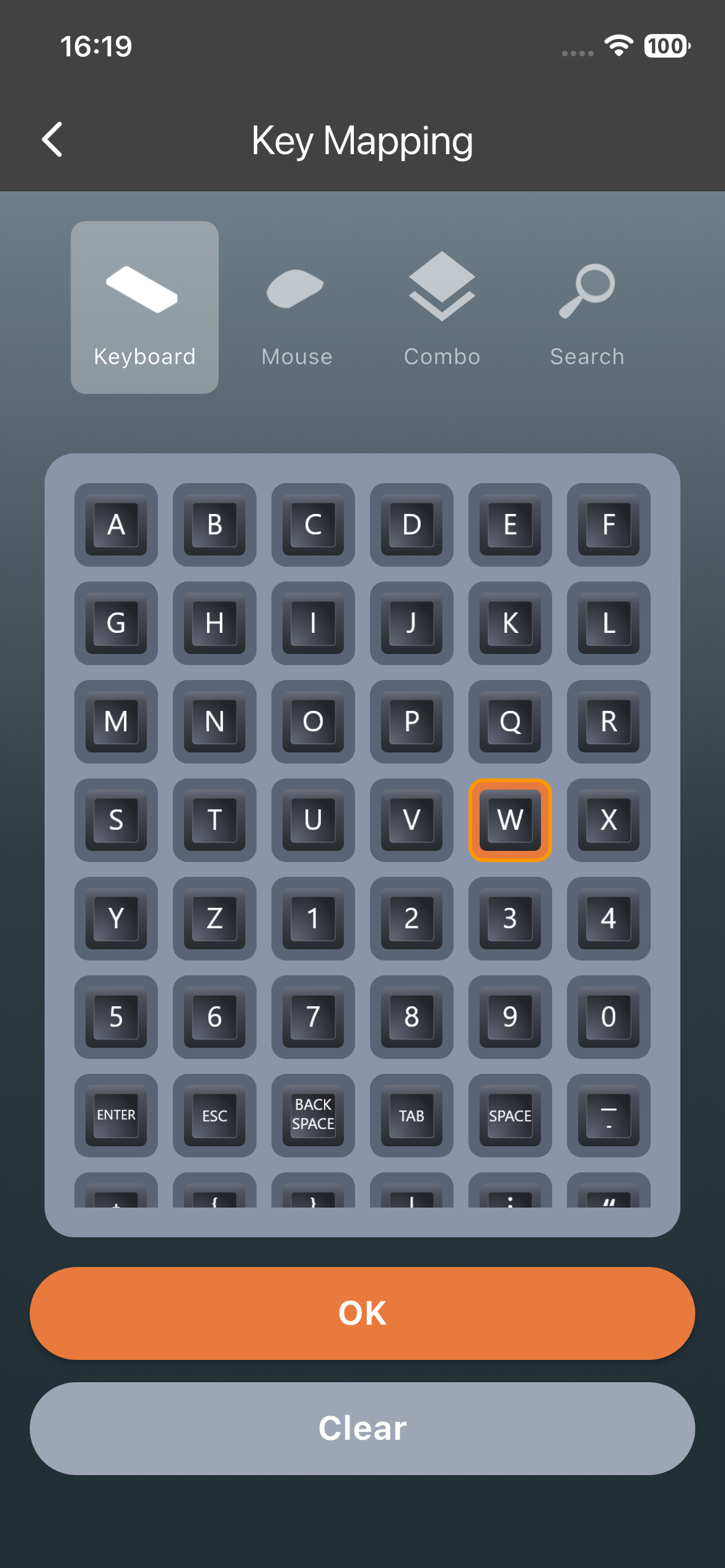
| Input Method | Description |
|---|
| Keyboard | Browse a visual grid of all keyboard keys with icons |
| Mouse | Left/Right/Middle/Side/Scroll Wheel/Mouse movements |
| Combo Keys | pre-defined combination keys |
| Search | Press the physical buttons on devices plugged into S2 — APP captures the key code in real time |
⚙️ Advanced — Search: Instead of picking from a grid, you press the actual key you want to use, and S2 learns it instantly. This is the fastest way to set a hotkey, especially for unusual keyboards.
4 - Bluetooth Pairing
How to pair your phone with ReaSnow S2 over BLE — first-time pairing, auto-reconnect, custom Bluetooth name, and troubleshooting.
S2 communicates with the ReaSnow Manager APP exclusively over Bluetooth Low Energy (BLE). There is no USB data connection between the APP and S2 — all configuration, firmware updates, and real-time monitoring happen wirelessly.
First-Time Pairing
- Power on S2 — the LED will show slow-flashing blue (waiting for BLE connection).
- On your phone, turn on Bluetooth and Location/GPS.
- Open the ReaSnow Manager APP.
- The APP automatically scans for nearby S2 devices — look for a device name starting with ReaSnow-S2- followed by a unique identifier.
- Tap your S2 in the device list to connect.
- The LED changes to solid blue when connected.
ℹ️ Info: Grant Bluetooth and Location permissions when asked. On Android, BLE scanning requires Location permission at the OS level — this is an Android requirement, not an S2 requirement.
Auto-Reconnect
S2 remembers the last paired phone. After the initial pairing:
- Power on S2 → the APP auto-reconnects within 5 seconds (if the APP is open and Bluetooth is on).
- If the BLE connection drops unexpectedly, the APP automatically attempts to reconnect.
- Upon reconnect, the APP resets to the Home tab.
Connection Rules
| Rule | Detail |
|---|
| One phone at a time | S2 accepts only one BLE connection. A second phone cannot connect while another is paired. |
| Range | Up to 10 meters in open air. For firmware updates, stay within 2 meters. |
| No USB tethering | APP-to-S2 communication is BLE only. The USB ports carry no data connection to the phone. |
Custom Bluetooth Name
Set a custom name for your S2’s BLE broadcast to make it easy to identify when multiple units are nearby:
- Go to Settings → Global Settings → Custom Bluetooth Name.
- Enter a name up to 15 bytes (UTF-8).
- Tap Save — the new name takes effect immediately.
Useful in tournament or LAN party settings where several players may have S2 devices in range.
Troubleshooting
| Symptom | Likely Cause | Solution |
|---|
| S2 not showing in device list | Bluetooth or Location is off | Turn on both Bluetooth and Location; grant permissions to the APP |
| S2 not showing in device list | S2 is already connected to another phone | Disconnect the other phone or power-cycle S2 |
| Connection drops frequently | Too far from S2 or BLE interference | Move closer; avoid dense wireless environments (Wi-Fi routers, other Bluetooth devices) |
| Connection drops during firmware update | Phone screen turned off or APP backgrounded | See Firmware Update for update rules |
| LED stays slow-flashing blue | Paired phone not in range or APP not open | Open the APP; check that Bluetooth is enabled |
💡 Tip: If nothing else works, restart your phone’s Bluetooth, power-cycle S2, and try again. This resolves most BLE pairing issues.
5 - Firmware Update
OTA firmware upgrade over BLE, version channels, and recovery on ReaSnow S2.
S2 firmware is updated wirelessly through the ReaSnow Manager APP — no PC, no USB cable, no file downloads required.
Update Channels
Choose a channel based on your needs:
| Channel | Description |
|---|
| Stable | Production-ready firmware. Recommended for all users. |
| Beta | Pre-release builds with new features. Minor issues possible. |
| Alpha | Development builds. For testing only — expect bugs. |
💡 Tip: Stay on the Stable channel unless you are testing a specific fix or feature with guidance from ReaSnow support.
How to Update
- Open the ReaSnow Manager APP and connect to S2.
- Navigate to Settings → Firmware Upgrade.
- The APP checks the server for available updates.
- If a newer version is available, tap Upgrade.
- The upgrade proceeds in four phases:
| Phase | Description |
|---|
| Version Check | APP compares local firmware version against the server manifest |
| Erase | S2 erases its old firmware partition |
| Download & Write | Firmware is sent over BLE. |
| Result Query | APP confirms the upgrade completed successfully |
During the Update
| What You See | What It Means |
|---|
| Progress percentage | Overall completion |
| Speed (KB/s) | Current BLE transfer rate |
| Estimated time remaining | Countdown to completion |
Important Notes
⚠️ Warning — follow these or the upgrade may fail:
| Rule | Reason |
|---|
| Keep the APP in the foreground | Backgrounded apps may be suspended by the OS |
| Do not let the phone screen turn off | Screen-off can interrupt the BLE connection |
| Disable battery saver / power-saving mode | Power saving throttles BLE throughput |
| Stay within 2 meters of S2 | BLE signal weakens with distance |
| Do not unplug S2 | Power loss during flashing can corrupt firmware |
Recovery
If an upgrade fails:
- The APP shows an error message with the failed phase.
- S2 remains in its current working state — a failed upgrade does not brick the device.
- Tap Retry to attempt the upgrade again.
- If repeated attempts fail, try:
- Moving closer to S2 (within 1 meter).
- Restarting the APP.
- Power-cycling S2.
- Switching to a different phone if BLE performance is consistently poor.
If the issue persists, contact ReaSnow support with your current firmware version and the error message.
6 - Download Center
ReaSnow S2 Manager APP downloads, firmware tools, and manuals.
Content coming in Round 3.